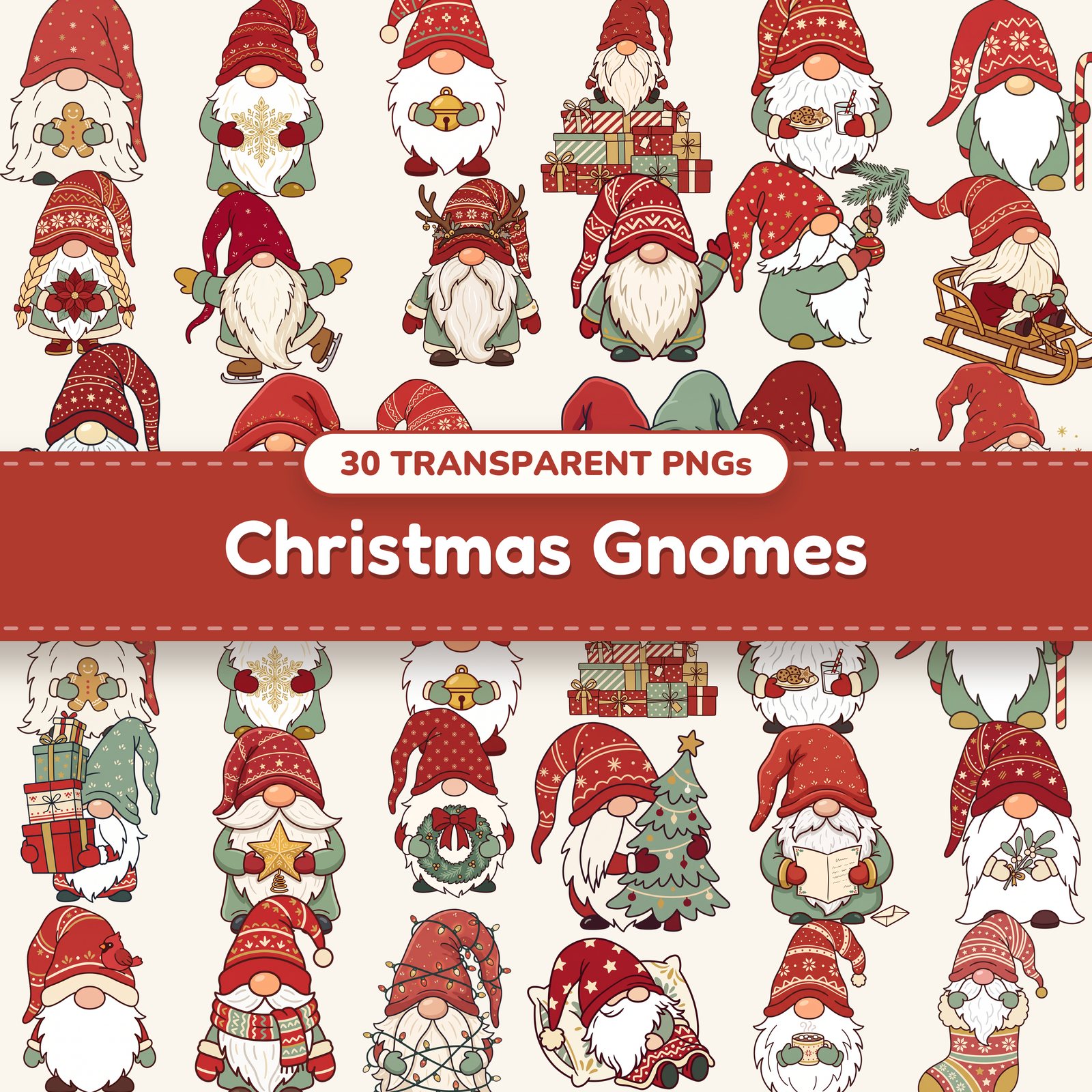
How to print a PNG at the exact size you want
Open a PNG and press Print, and most computers guess the size: the picture fills the whole page, or comes out as a little square in the corner. Here's how to make it print exactly as big as you want, using a gnome from our Christmas Gnomes bundle as the example: once two inches wide for a card, and once as a full page for a classroom door.
Why PNGs print at the wrong size
A PNG is a grid of pixels, and how big it prints depends on how many pixels go into each inch: its DPI. Our gnome files are about 3,150 pixels tall and saved at 300 DPI, which makes 10.5 inches. Plenty of apps ignore the DPI and stretch the picture to fit the page instead. The dependable way to get an exact size is a file made at that size, printed at 100%.
What you need
- •Your PNG, unzipped. We're using one gnome from the Christmas Gnomes bundle.
- •The free image resizer for printing. It works in your browser, and nothing is uploaded.
- •A printer, or a print shop's upload page
Make the file the right size
- 1Open the image resizer for printing and press Choose an image, or drop the PNG on the box.
- 2Under Print size, pick what you're printing. For a gnome two inches wide, choose Custom size, type 2 in Width and leave Height on auto: the height follows the picture, so this gnome comes out about 2.82 inches tall. Switch Units to cm if you measure in centimeters.
- 3For a full page, choose Letter page, 8.5 × 11 in (or A4 page), then Fit it all in, so none of the gnome is cut off. Fill the size (crops) covers the page edge to edge and trims what doesn't fit. A wide picture turns the page sideways for you; untick Turn the size sideways to change it.
- 4Read the line under the settings. Sharp means 250 or more pixels per inch, Fine for most prints means 150 to 250, and Will look blurry means under 150; then it also tells you the biggest size that prints sharp. Our gnome fills a whole Letter page and still reads Sharp.
- 5Leave DPI on 300 (print) and File on PNG, then press Download PNG. The size is in the file name, like christmas_gnomes_01-2x2.82in-300dpi.png, and the 300 DPI is saved inside the file.
Print it at home
- 1On a Mac, open the file in Preview, choose File, then Print, and set Scale to 100%. Preview reads the DPI, so the gnome prints at the size you made.
- 2On Windows, the Photos app squeezes pictures into its own photo sizes. Open Word instead and choose Insert, then Pictures: Word reads the DPI and places the picture at its real size, which you can check under Picture Format, then Size. Copy and paste to fit several on one page.
- 3In the print dialog, choose Actual size or 100%, not Fit or Shrink to fit.
- 4Measure the first print with a ruler before you print a stack.
- •A full-page picture is the one exception: home printers can't print to the very edge, so choose Fit to page and it shrinks a hair to the printable area. Keep anything important away from the edges.
Does the transparent background matter?
On paper, not much. A home printer has no white ink, so white and transparent both just leave the paper bare, even on colored cardstock.
It matters before you print: in Word, Canva or Cricut Design Space a transparent PNG sits right on a colored background or a photo, with no white box around it, and die-cut stickers and Print Then Cut follow the outline of the design. Saved as PNG, the resizer keeps the background transparent wherever the picture doesn't reach. Saved as JPG, those areas are filled with white.
At a print shop or photo lab
- •Pick the print's exact size in the resizer: Photo, 4 × 6 in, 5 × 7 in or 8 × 10 in. Fill the size (crops) covers the whole print with no white bars; Fit it all in keeps every bit of the picture and leaves the rest of the print blank.
- •Save photo prints as JPG. Some labs and kiosks print transparent areas black or gray, and JPG fills them with white.
- •For posters, signs and stickers, most shops ask for a PNG or JPG at 300 DPI. The DPI is saved in the file, so their software opens it at the size you chose.
- •If a shop says your file is low resolution, go smaller, or start from a bigger original. The resizer's sharpness line warns you before you upload.
Home or shop?
Print at home for small things you need today: cards, tags, a page for the classroom. Go to a shop for photo paper, anything bigger than your printer takes, and prints that run right to the edge.