How to make clipart stickers at an exact size on sticker paper
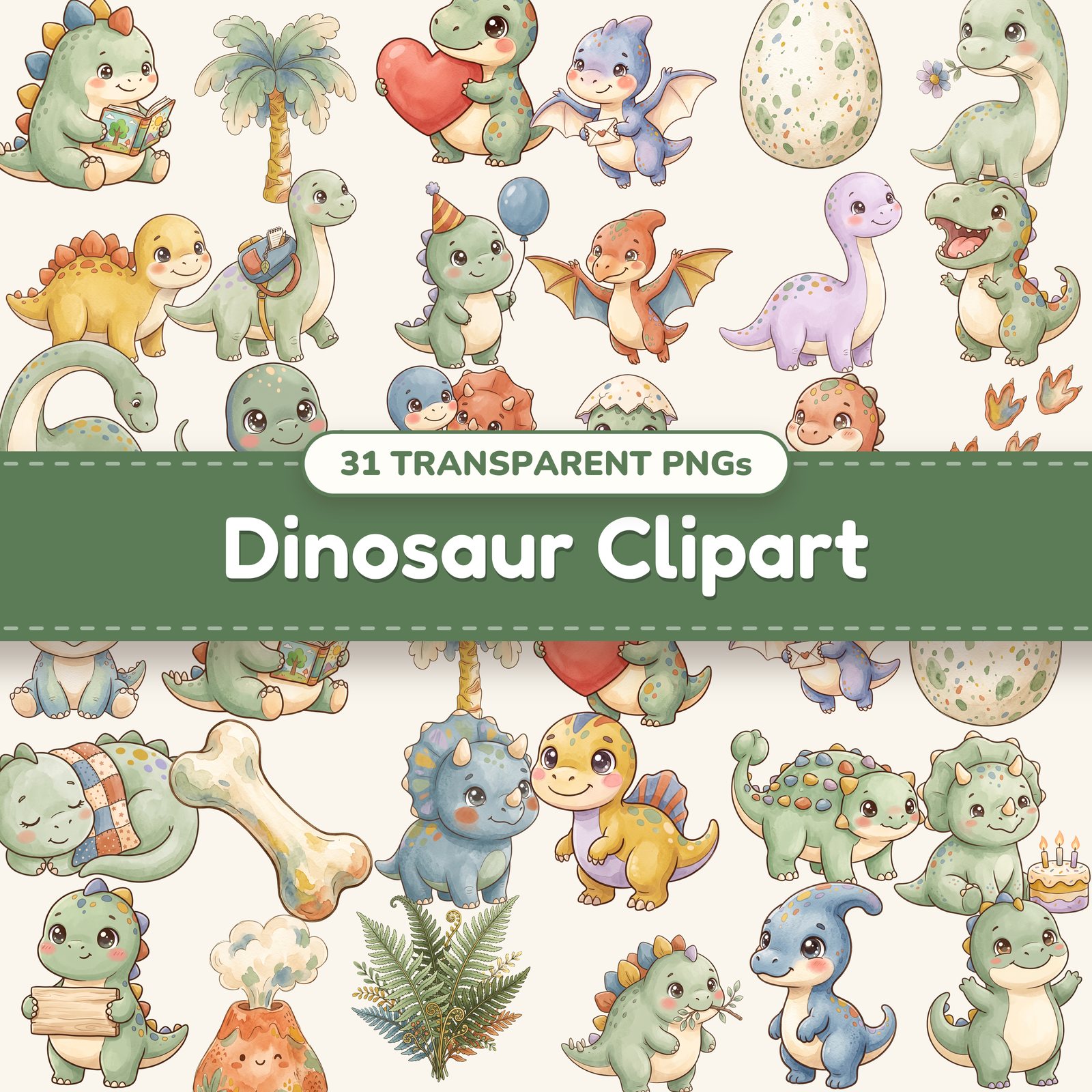
Sticker paper is cheap and runs through any inkjet printer, but a sticker that prints an inch too big wastes the sheet. This shows how to make every sticker an exact size with two free tools, using a baby dinosaur from our Cute Dinosaurs bundle as the example.
What you need
- •Printable sticker paper for inkjet printers, matte or glossy
- •Your PNG clipart, unzipped. We're using Cute Dinosaurs.
- •The free background remover and image resizer for printing
- •Microsoft Word, or another app that places pictures at their real size
- •Scissors, or a Cricut for Print Then Cut
Step 1: trim the design to its edges
Clipart files usually have a little empty space around the design. Ours do on purpose, so nothing touches the edge of the file, but it means a file sized to 3 inches holds a dinosaur of about 2.86. Trimming it first makes the sticker size the dinosaur's size.
- 1Open the background remover and choose the PNG. It sees the background is already transparent and says so, so there's nothing to take off.
- 2Leave Trim the empty edges ticked, and set Clear space around it to None.
- 3Press Download PNG. You get a copy cut right to the dinosaur, with -transparent at the end of its name.
Have a design from somewhere else that came on a white background? The same tool spots the flat white and takes it off exactly. Move the slider up if a pale edge is left, or down if bits of the design disappear, and tick Also inside the design only if the white spots the design surrounds should be clear too.
Step 2: set the sticker size
- 1Open the image resizer for printing and choose the trimmed PNG.
- 2Under Print size, in the Stickers group, pick Sticker, 2 in, 3 in or 4 in. That's the longest side: a tall dinosaur comes out 3 inches tall, a long one 3 inches wide. For any other size, choose Custom size and type a width.
- 3Check that the line under the settings says Sharp. Even at 4 inches our dinosaurs have pixels to spare.
- 4Keep File on PNG so the sticker stays transparent around the design, and press Download PNG.
Step 3: fill a sheet
- 1Open a blank Word document and choose Insert, then Pictures. Word reads the 300 DPI saved in the file, so the dinosaur lands at exactly the size you picked.
- 2Set the picture's wrap to In Front of Text so you can drag it anywhere, then copy and paste it, or insert other dinosaurs sized the same way.
- 3Leave about a quarter inch between stickers so you can cut around each one. A Letter sheet fits about six 3-inch stickers, or twelve 2-inch ones.
Step 4: print
- •Print a test on plain paper first and measure one sticker with a ruler.
- •In the print dialog, choose Actual size or 100%, the best quality, and the paper type closest to your sticker paper.
- •Let the ink dry for a few minutes before you cut, especially on glossy paper.
Step 5: cut
- •By hand: cut around each design with a thin white border. It's much more forgiving than cutting right on the line.
- •With a Cricut: Print Then Cut sets the size on the Design Space canvas, so you can upload the original PNG and skip Step 2. The largest Print Then Cut image is about 6.75 × 9.25 inches, and our Print Then Cut guide walks through every step.
- •At a sticker shop: upload the trimmed, sized PNG and order die-cut stickers. The transparent background shows them where to cut, and the size and 300 DPI are already in the file.
Selling stickers
Our clipart's commercial license covers stickers you print and sell. It doesn't cover selling the PNG files, or a printable sticker sheet as a download, since that hands buyers the files themselves.